
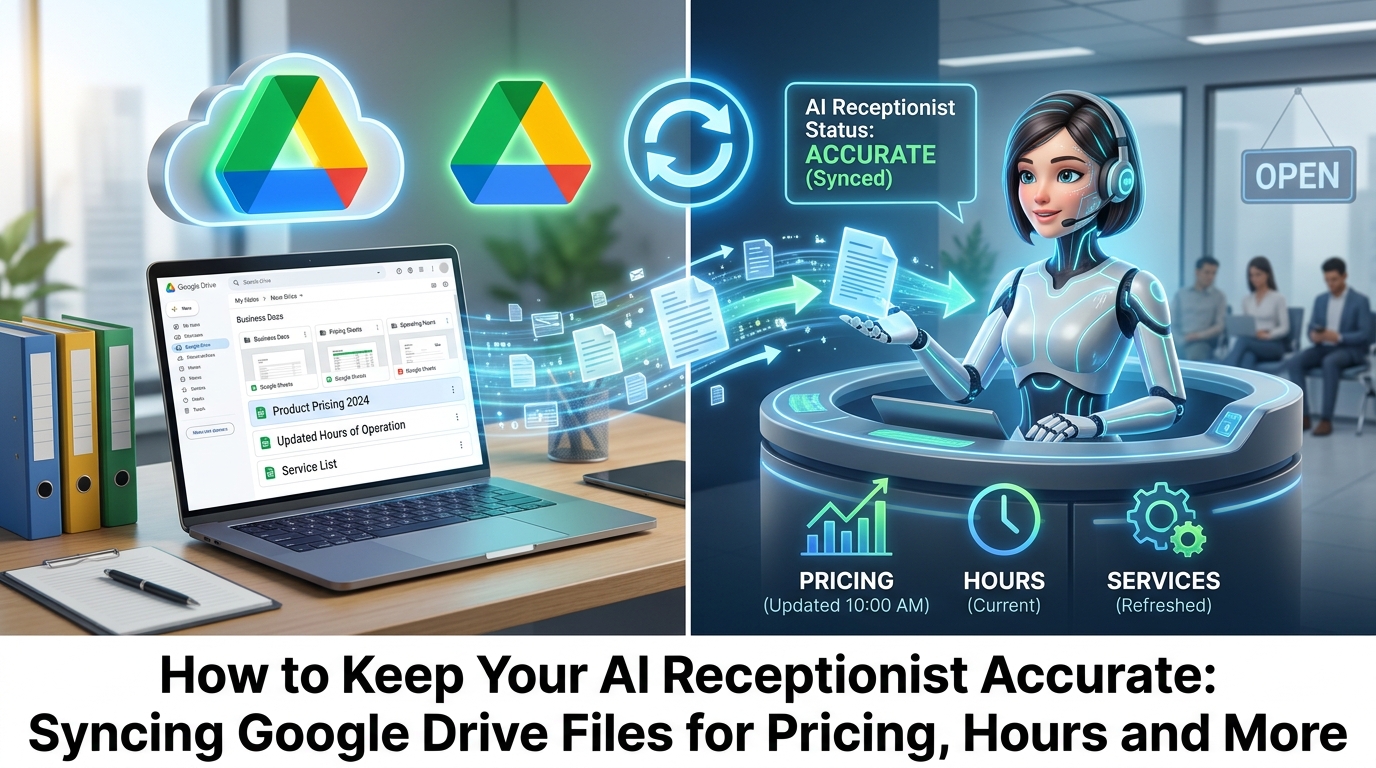
An AI receptionist is only as good as the information she has. Prices change, opening hours shift over the holidays, staff go on leave, and specials come and go. When the information is out of date, the caller hears the wrong answer — and that costs trust, bookings, and sometimes a customer for good. A receptionist who confidently quotes last month's price is worse than no answer at all.
The fix is not to log into an AI dashboard every time something changes. Hailey AI can read your business information straight from files you already keep in Google Drive — Google Sheets and Word documents — and refer to that information when she talks to callers. You update a familiar file the way you normally would, and Hailey picks up the change on the next sync. That keeps her answers correct and current without anyone on your team needing to touch the AI.
How It Works
The setup is deliberately simple, and the Hailey team handles the connection side of it. From your end, keeping Hailey accurate is just editing a file.
- Keep your business information in Google Sheets or Word documents stored in Google Drive — price lists, opening hours, service areas, policies, FAQs.
- The Hailey team connects those files to your AI Receptionist during setup. You do not need to do anything technical.
- Hailey syncs the content of those files every 15 minutes, so the information she can refer to stays current.
- When a caller asks a question — "how much is a call-out?", "are you open on the public holiday?", "do you cover my suburb?" — Hailey answers using the information in those files.
- When something changes, you edit the file in Google Drive as you normally would. Hailey picks it up on the next sync.
What to Put in Google Sheets vs Word Docs
The two file types suit different kinds of information. Sheets are best for structured data that changes often and needs to be scanned quickly; Word docs are best for longer written information that reads more like a policy or a script.
| Use Google Sheets for | Use Word docs for |
|---|---|
| Price lists, service menus, call-out fees | FAQs and common questions with answers |
| Staff availability and rosters, who is on call | Policies — cancellation, deposit, payment terms |
| Service areas by suburb | Service or treatment descriptions |
| Opening hours and public holiday hours | Booking and cancellation rules |
| Stock availability and current specials | New-patient or new-client information |
| Appointment types and fee schedules | Scripts for how to handle common questions |
Where a Google Drive Sync Helps Most
Most service businesses already keep this kind of information somewhere — a spreadsheet, a Word doc, a printed sheet stuck to the wall. Moving it into Google Drive and pointing Hailey at it turns that same information into something the AI receptionist can answer from. These are the use cases that come up most often.
Price List Changes
Tradies, salons and clinics change prices regularly — a new call-out fee, a rise in the hourly rate, a new treatment price. Update the Sheet when rates or service prices change, and Hailey quotes the current figure on the next sync rather than a number from three months ago. See the trades setup for how this fits a field-service business.
Opening Hours and Public Holiday Hours
Hours shift over Christmas, Easter and long weekends, and callers always ask. Update the hours in the file before the holiday period and Hailey tells callers the correct times — including when you are closed — instead of the standard weekday hours. This alone saves a steady drip of missed or confused bookings.
Staff Availability and Who's On Call
A roster Sheet showing who is working, who is on leave, and who is on call lets Hailey give an accurate answer when someone asks for a particular person or wants to know who is available. This pairs naturally with call transfer rules — the roster tells Hailey who is on, and the transfer rules route the call to them.
Service Areas
When a business expands into a new suburb or stops covering another, update the list on the Sheet. Hailey can then tell a caller in the new area that yes, you do cover them — or politely let a caller outside the area know, instead of booking a job you cannot attend.
Specials and Promotions
Add a seasonal offer to a Sheet or doc and Hailey can mention it to relevant callers. When the offer ends, remove it from the file and Hailey stops quoting it on the next sync — so you are not advertising a discount that has expired.
New Services or Treatments
Add a new service or treatment to the Word doc service description and Hailey can answer questions about it — what it involves, who it suits, the rough cost — without you having to retrain anything. The information lives in the file.
Policy Changes
Update cancellation, deposit or payment terms in a Word doc and Hailey explains the current policy when a caller asks, rather than quoting an old rule that no longer applies. This is especially useful for clinics and practices where deposit and cancellation policies change.
Clinics and Practices
New practitioners, new appointment types, what to bring to a first visit, and fee schedules all belong in a file Hailey can read. A new patient calling after hours gets accurate, current information instead of a best guess, and the front desk is not fielding the same questions all day.
Hospitality
Updated menus, function packages, event dates and booking terms change often. Keep them in a Sheet or doc and Hailey can answer function enquiries, quote package prices, and confirm event dates accurately. See the hospitality setup for more.
Real Estate and Professional Services
Updated fees, inspection times, and intake information for new clients all sit naturally in a file. Hailey can give prospective clients the current details without a staff member having to stop and look it up — useful when enquiries come in after hours or while the team is in meetings.
Why This Beats Updating an AI System Manually
You could, in theory, keep all of this inside an AI dashboard. Most businesses do not, and for good reason. Google Sheets and Word docs are tools your team already uses, already shares, and already trusts. Version history is built in, so you can see who changed what and when. There is no retraining step — edit the file and Hailey picks it up. And the same file can be the source of truth for the website, the staff, and Hailey, so you are not maintaining the same information in three places.
The practical effect is that the people who actually know the prices and the hours — the ones doing the work — can keep Hailey accurate without learning a new system or waiting on someone technical. That is what keeps the information current over the long term.
Best Practices for Accurate Answers
Hailey answers using the information provided to her, so accuracy depends on keeping the files in good shape. A few habits make a big difference:
- Keep one clear file per topic — a price list file, a hours file, a policies file — rather than one giant document that mixes everything.
- Use clear headings and consistent wording so Hailey can find the right information quickly.
- Keep dates and prices current. If a special has ended, remove it rather than leaving it marked "expired".
- Review the files regularly — for example, before each holiday period — so nothing drifts.
- Remember the 15-minute sync window. If you change a price, it is not instant; allow the window before you expect Hailey to quote the new figure.
- For something genuinely urgent — a sudden closure, an emergency — allow the 15-minute window or tell the Hailey team directly so it can be handled straight away.
- Do not store sensitive data in files shared with Hailey. Card numbers, passwords and private customer records do not belong in a file the AI reads from.
What Hailey Does When She Doesn't Have the Answer
Hailey does not guess. If a caller asks something that is not in the files — or the information is not there yet — she does not invent an answer. Instead, she captures the caller's details and the question and passes it on, so a real person can follow up with the right information. That is the honest, safe behaviour: an accurate "I'll find out and get back to you" beats a confident wrong answer every time.
This is also why keeping the files current matters. The more complete and up to date the files are, the fewer questions Hailey has to hand off, and the more calls she handles end to end without needing anyone. For more on how this fits the broader setup, see the FAQ page and AI receptionist cost in Australia.
Frequently Asked Questions
Can the AI receptionist read my Google Drive files?
Yes. Hailey AI can read information from Google Sheets and Word documents stored in your Google Drive, and refer to that information when she talks to callers. The Hailey team connects the files during setup — you do not need to do anything technical. From there, Hailey uses the content of those files to answer questions about prices, hours, service areas, policies and more.
How often does the data sync?
The data syncs every 15 minutes. That means a change you make in a file is not instant — it appears for Hailey within roughly 15 minutes. For routine updates like a price change or new opening hours, that window is fine. For something genuinely urgent, like a sudden closure, allow the 15-minute window or tell the Hailey team directly so it can be handled straight away.
What types of files can I use?
Google Sheets and Word documents stored in Google Drive. Google Sheets suit structured, frequently changing data like price lists, rosters, service areas and opening hours. Word docs suit longer written information like FAQs, policies, service descriptions and scripts for common questions. Hailey reads from these files; she does not write back to them.
If I change my prices, how quickly does Hailey know?
Within about 15 minutes. You update the price in the Google Sheet as you normally would, and on the next sync Hailey picks up the new figure and quotes it to callers. It is not instant, so if you need a price change reflected immediately — for example, mid-morning on a busy day — allow the 15-minute window or let the Hailey team know.
Do I need technical skills to keep Hailey up to date?
No. You update a Google Sheet or Word doc in Google Drive the same way you already do — no AI dashboard, no retraining, no code. The Hailey team handles the initial connection during setup. After that, keeping Hailey accurate is just keeping the files current, which is why staff who are not technical can do it.
Related Articles
Hailey AI
Hailey AI — Australian AI Automation Team
Hailey AI is part of the Hailey AI team, helping Australian service businesses automate enquiries, bookings, and customer communication. With hands-on experience across trades, healthcare, and professional services, Hailey writes practical, no-fluff guides focused on real business outcomes.
Stop Losing Jobs to Missed Calls
FREE AI CHAT DEMO AVAILABLE. No credit card, no lock-in contract. Includes your AI-powered website + AI Website Chatbot.